Macro Security Settings: 10 FAQs on Blocking Office Malware
Disabling macros entirely is the only setting that stops all Office-based attacks, but it breaks legacy workflows that rely on automation scripts.

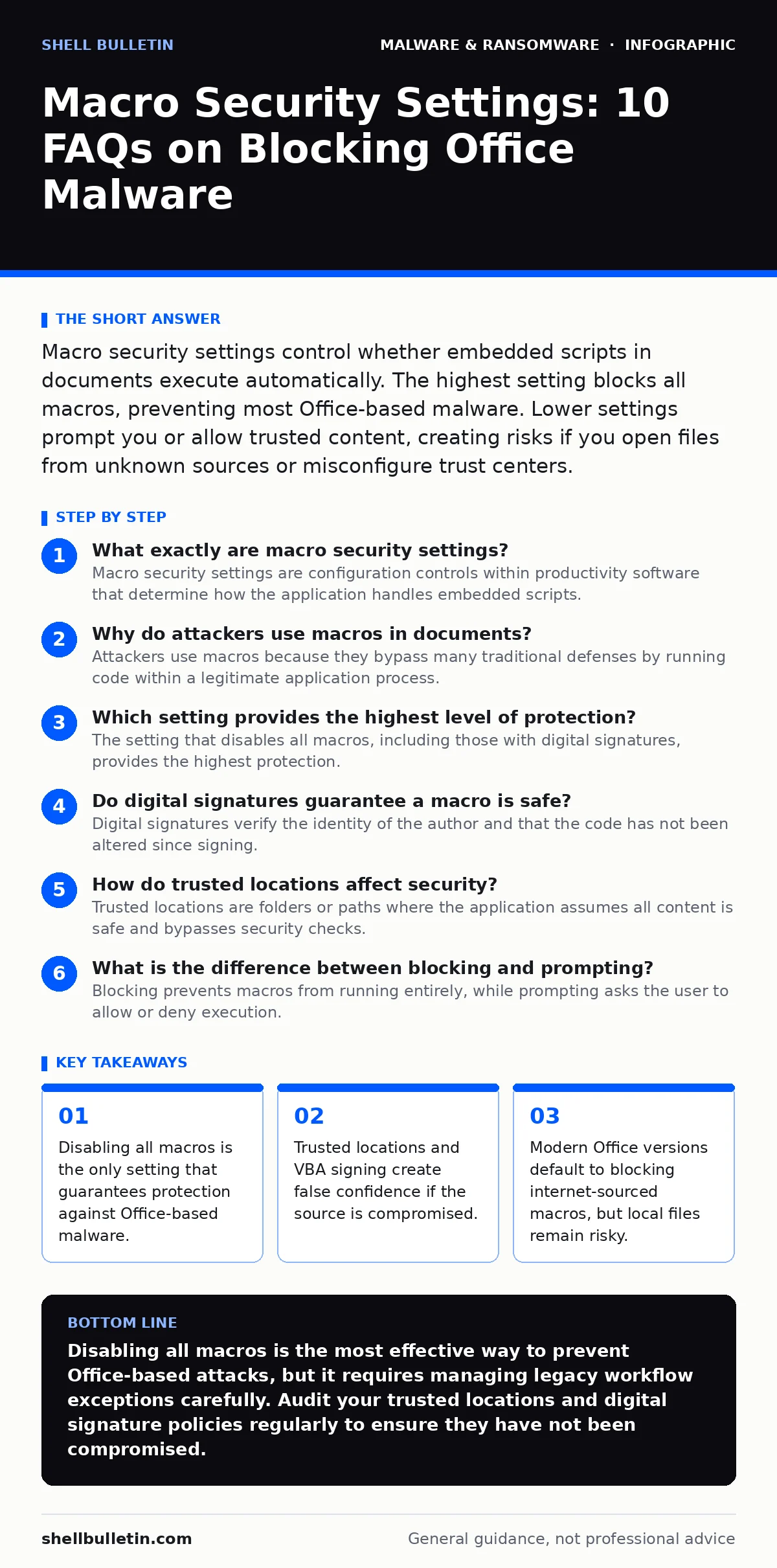
Macro security settings control whether embedded scripts in documents execute automatically. The highest setting blocks all macros, preventing most Office-based malware. Lower settings prompt you or allow trusted content, creating risks if you open files from unknown sources or misconfigure trust centers.
What exactly are macro security settings?
Macro security settings are configuration controls within productivity software that determine how the application handles embedded scripts. These scripts, often written in Visual Basic for Applications, can automate tasks or manipulate data. The settings range from allowing all code to blocking everything, with intermediate options that prompt the user or block only untrusted content. You choose these settings in the Trust Center of your application.
Why do attackers use macros in documents?
Attackers use macros because they bypass many traditional defenses by running code within a legitimate application process. A document with a macro can execute commands on your system without requiring a separate executable file. This technique allows malware to drop payloads, steal credentials, or establish persistence. The code runs with the same permissions as the user who opened the file.
Which setting provides the highest level of protection?
The setting that disables all macros, including those with digital signatures, provides the highest protection. This configuration ensures that no embedded script can run, regardless of its source or reputation. It stops both known and unknown malicious code. The trade-off is that legitimate automated documents will fail to function until you manually enable them.
Do digital signatures guarantee a macro is safe?
Digital signatures verify the identity of the author and that the code has not been altered since signing. They do not guarantee that the code itself is benign or free of malicious intent. A trusted vendor could have their signing certificate compromised, allowing attackers to sign malicious code. Relying solely on signatures creates a false sense of security if you do not verify the source independently.
How do trusted locations affect security?
Trusted locations are folders or paths where the application assumes all content is safe and bypasses security checks. Files placed in these directories can run macros without prompting or blocking. If malware lands in a trusted location, it executes silently. You should restrict these locations to directories you control and audit them regularly for unauthorized changes.
See also: Prevent Trojanized Software Attacks: A Prevention Checklist
What is the difference between blocking and prompting?
Blocking prevents macros from running entirely, while prompting asks the user to allow or deny execution. Prompting places the burden of decision-making on the user, who may click "Enable" without understanding the risk. This human factor is often the weakest link in security. Blocking removes this uncertainty but requires manual intervention for legitimate automation.
Can macros run in protected view?
Protected view opens files in a restricted sandbox environment that disables active content, including macros. This prevents code from executing until you explicitly choose to enable editing. It provides a layer of defense against drive-by downloads and email attachments. However, if you enable editing, the sandbox is removed, and macros can run if other settings allow it.
How do group policies manage these settings?
Group policies allow administrators to enforce macro security settings across an organization's devices. This ensures consistent configuration and prevents users from lowering security settings locally. It centralizes control over trusted locations and digital signature requirements. Without centralized management, individual users may inadvertently disable protections.
| Setting | Behavior | Risk Level | Impact on Workflow |
|---|---|---|---|
| Disable All | Blocks all macros | Low | High disruption |
| Disable with Prompt | Blocks unsigned, prompts for signed | Medium | Moderate disruption |
| Enable All | Runs all macros | High | No disruption |
| Trusted Locations | Bypasses checks in specific folders | Variable | Low disruption |
Why do some legacy systems require macros?
Some older applications and business processes rely on macros for functionality that modern tools handle differently. These systems may not support newer automation standards or cloud-based integrations. Disabling macros can break critical workflows in these environments. You must weigh the security risk against the operational need for these legacy features.
How do macro settings relate to other malware types?
Macro-based attacks often serve as a delivery mechanism for more complex threats. Once a macro executes, it may download additional payloads that exhibit fileless malware characteristics or use DLL sideloading to hijack legitimate processes. Understanding macro settings helps you stop the initial infection vector. For deeper analysis of how these payloads operate, see our guide on malware payloads.
Can you detect malicious macros without running them?
Static analysis tools can scan documents for suspicious macro code without executing it. These tools look for known malicious patterns, obfuscation techniques, and unusual commands. However, they may miss novel or heavily obfuscated code. Dynamic malware analysis involves running the code in a safe environment to observe its behavior. For more on behavioral detection, read about dynamic malware analysis.
What is the role of file hashes in this context?
File hashes are unique identifiers for a file's content. Security systems use hashes to compare files against databases of known malware. If a document with a macro has a matching hash, it is blocked. This method works well for known threats but fails against new or modified files. Combining hash checks with behavioral analysis improves detection rates. See file hashes in malware detection for more details.
How do these settings prevent computer viruses?
Computer viruses often spread via email attachments or shared files. Macro security settings block the execution of the viral code embedded in these files. This prevents the virus from replicating or infecting other systems. While not all viruses use macros, many modern variants do to evade traditional antivirus signatures. For a broader understanding of replication mechanisms, see computer viruses.
What is the connection to screen locker ransomware?
Screen locker ransomware may use macros to deploy the locking mechanism. The macro executes the code that encrypts the user's screen or files. Blocking macros stops this initial deployment step. However, if the ransomware arrives through other vectors, macro settings will not help. For more on this specific threat, read about screen locker ransomware.
How does DLL sideloading interact with macros?
DLL sideloading is a technique where malware masquerades as a legitimate library file. Macros can trigger the loading of these fake libraries. If a macro runs, it may initiate a DLL sideloading attack to execute malicious code. Blocking macros prevents this trigger. For a deeper dive into library hijacking, see DLL sideloading.
What is the long-term trend in macro security?
The trend is toward stricter defaults and reduced reliance on user prompts. Modern applications are moving away from allowing macros by default. This shift acknowledges the high risk of social engineering attacks. Users are expected to adapt to more restrictive environments. For insights on how threats evolve, see malware analysis.
Key takeaways
- Disabling all macros is the only setting that guarantees protection against Office-based malware.
- Trusted locations and VBA signing create false confidence if the source is compromised.
- Modern Office versions default to blocking internet-sourced macros, but local files remain risky.
Disabling all macros is the most effective way to prevent Office-based attacks, but it requires managing legacy workflow exceptions carefully. Audit your trusted locations and digital signature policies regularly to ensure they have not been compromised.
Frequently asked questions
Can I disable macros for specific users only?
Yes, group policies or application-specific settings can restrict macro execution for certain user accounts or groups.
Do macros run in PDF files?
PDFs can contain JavaScript, which is similar to macros, but they are handled by different security settings in the PDF reader.
How do I know if a macro is malicious?
Look for obfuscated code, network connections, or commands that modify system files. Static analysis tools can help identify these indicators.
Can I recover from a macro-based infection?
Yes, by isolating the infected machine, removing the malicious document, and running a full system scan. Restore files from clean backups if necessary.
How this guide was produced: written by the Shell Bulletin editorial team with AI assistance, checked against the public references listed below, and reviewed when the facts change. See our editorial policy or report an error.